Importing and syncing
Export stores to CSV
Download all your stores as a CSV file, to keep a backup or to edit them in a spreadsheet and import them again.
exportcsvbackupdownloadspreadsheet
Export your stores to get a CSV file of every store in Shoppy Store Locator. Use it to:
- Keep a backup, for example before a big import or before you uninstall the app.
- Update many stores in a spreadsheet, then import the file again.
- Share your store list with your team.
Export your stores
- Go to Stores.
- Click Export.
- Click Export All Locations.
- When the export is ready, it appears at the top of Export History. Click Download.
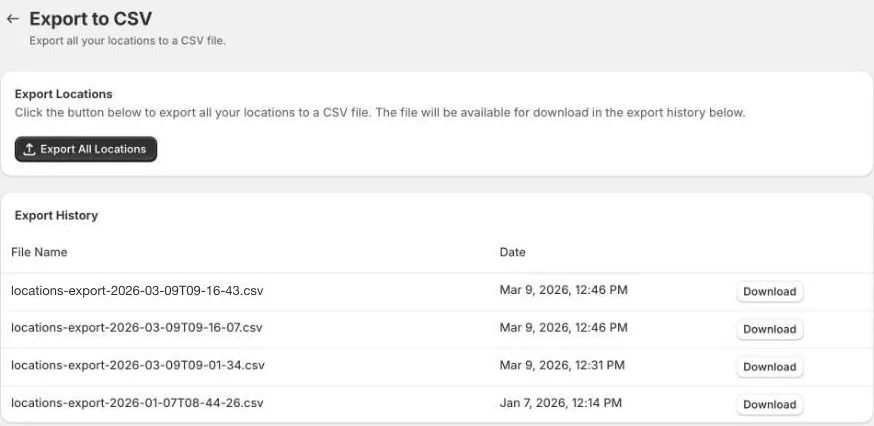
Export History keeps your earlier exports, so you can download them again later.
What’s in the file
The export includes every store, active and inactive, sorted by name. It has the same columns as the import file:
StoreName, StoreId, Handle, Address, City, State, Country, Zip, PhoneNumber, Email, ShortDescription, Description, Status, Tags
StoreId is each store’s ID. Keep it in the file if you plan to import it again to update your stores.
The export doesn’t include trading hours, special dates, photos, labels, social links, or map pins.
Tips
- Export before any big change, such as a large CSV import, so you have a copy to go back to.
- If you’re editing the file to import it again, don’t change the header row, and save it as CSV (comma separated).
- If you uninstall the app, your stores are deleted straight away. Export them first if you might come back.