Your online store
Translations
Change the wording of your store locator, translate it into other languages, and translate each store's description on its store page.
Use Translations to:
- Change any wording in your store locator, such as
View Store Hours, even if you only sell in English. - Show your store locator in other languages.
- Translate the description on each store’s page.
Translations are included in some plans. If yours doesn’t include them, you’ll see Translations need a plan upgrade. Click View billing options to see the plans.
Supported languages
English, Chinese, Japanese, French, German, Spanish, Italian, Indonesian, and Korean.
Which language customers see
The store locator uses the language of your online store. If your store is in more than one language, customers see the store locator in the language they chose. If the page has no language set, it uses the language of the customer’s browser.
If there’s no translation for a language, the store locator uses English.
To add languages to your online store, go to Settings › Languages in your Shopify admin.
Change or translate the store locator’s wording
- Go to Translations in the app menu. The Widget text tab opens.
- Choose a Language.
- Find the text you want to change. Type in Filter to find a label quickly, for example
hours. - Type your wording in the translation box next to it.
- Click Save in the bar at the top.
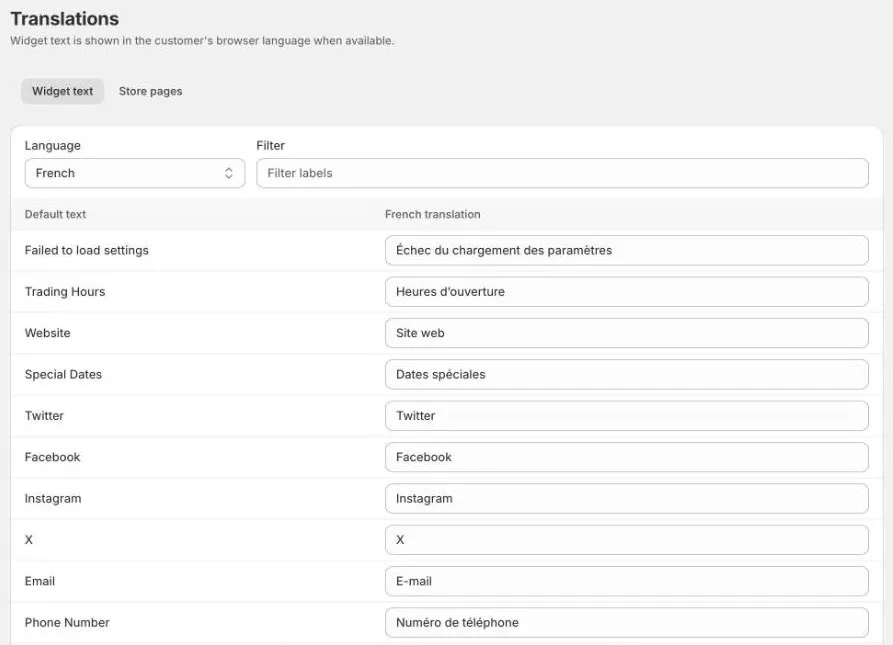
The Default text column shows the English wording, so you can see what each label is. Most languages already have a translation filled in. Change any you’d like to word differently.
To change the English wording, choose English and edit the text. For example, change View Store Hours to Opening hours.
Your changes show on your store locator straight away.
Translate store page descriptions
Each store’s description can be shown in each language on its store page.
- Go to Translations and click the Store pages tab.
- Choose a Store.
- Type the store’s description in each language you need. Leave a language empty if you don’t need it.
- Click Save in the bar at the top.
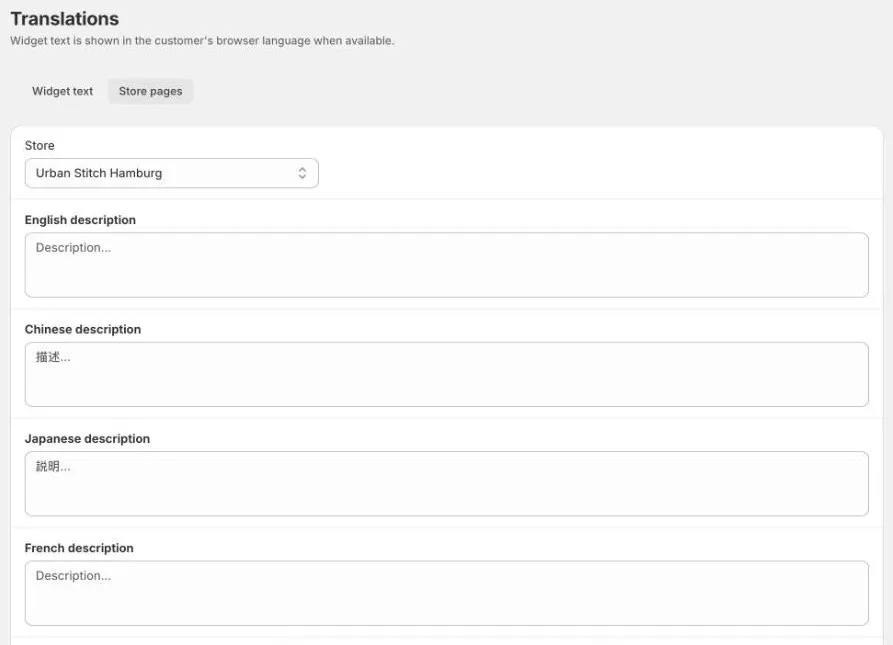
You can also get here from a store: in the Store page section, click ⋯ › Translate page.
Store names, addresses, and other store details aren’t translated. They show as you entered them.
Tips
- Switching language or tab with unsaved changes asks you to confirm first. Save before you switch.
- Some wording is also set in Settings › Search, such as the search placeholder and the no results message. See Search settings.
- Check the result on your online store in each language. See What shoppers see.