Managing stores
Fix stores missing from the map
Find stores that have no pin on the map and fix them, so customers can find them on your store locator.
mappinnot on mapcoordinateslatitudelongitudeaddresstroubleshooting
A store needs a pin, which is its latitude and longitude, to show on the map. Stores without a pin are hidden from the map, so customers searching near them won’t find them.
Why a store has no pin
- The address was typed in without picking one of the suggestions.
- The store was imported from a CSV file or Google Sheets, and the app couldn’t find its address on the map.
- The pin was cleared while editing the store.
Find the stores
You can find them in two places:
- Dashboard: under Needs attention, a message says how many stores aren’t shown on the map. Click Fix stores.
- Stores: click the Not on map tab. Each of these stores shows Not on map — no coordinates under its address.
If the Not on map tab is empty, all your stores have a pin.
Fix a store
- Click the store to open it.
- In Address, click Address line 1 and retype the start of the address.
- Pick the right address from the suggestions. A pin drops on the map, and Latitude and Longitude fill in.
- If the pin isn’t exactly on the store, drag it to the right spot.
- Click Save.
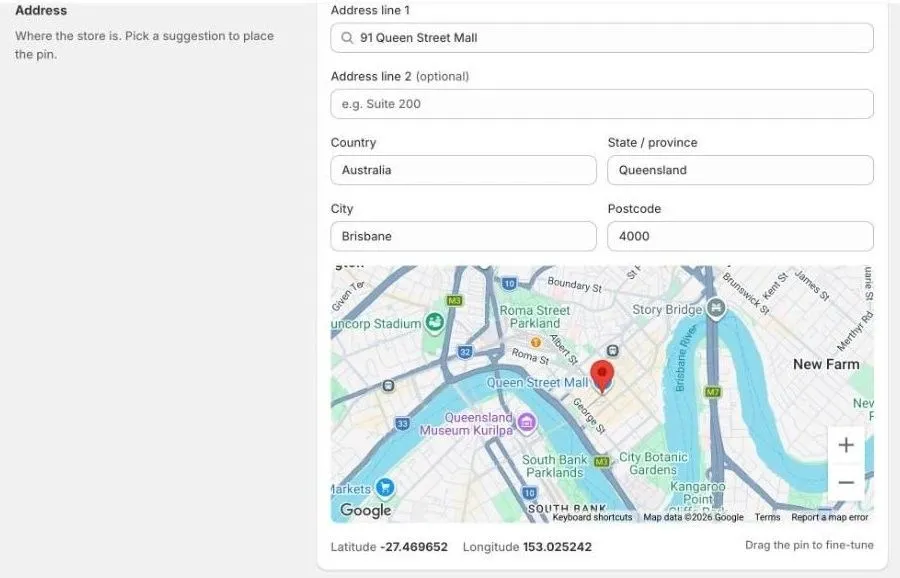
The store leaves the Not on map tab and shows on your store locator straight away, as long as it’s Active.
If the address isn’t in the suggestions
- Try a shorter version, such as the street address and suburb only.
- For a store inside a shopping centre, search for the centre’s street address, then drag the pin to the store’s entrance.
- If you’re fixing many stores, it can be quicker to correct their addresses in a CSV file and import it again with each store’s
StoreId. The app finds the pin from the address. See Import stores from a CSV file.