Settings and design
Colours and fonts
Use the visual customizer to match your store locator's font, colours, and corner style to your brand, with a live preview.
settingsdesigncoloursfontsthemecustomizerbranding
The customizer lets you change your store locator’s font, colours, and corner rounding, and see the result as you go.
Open the customizer
- Go to Settings › Design.
- Under Colours, fonts & more, click Open customizer.
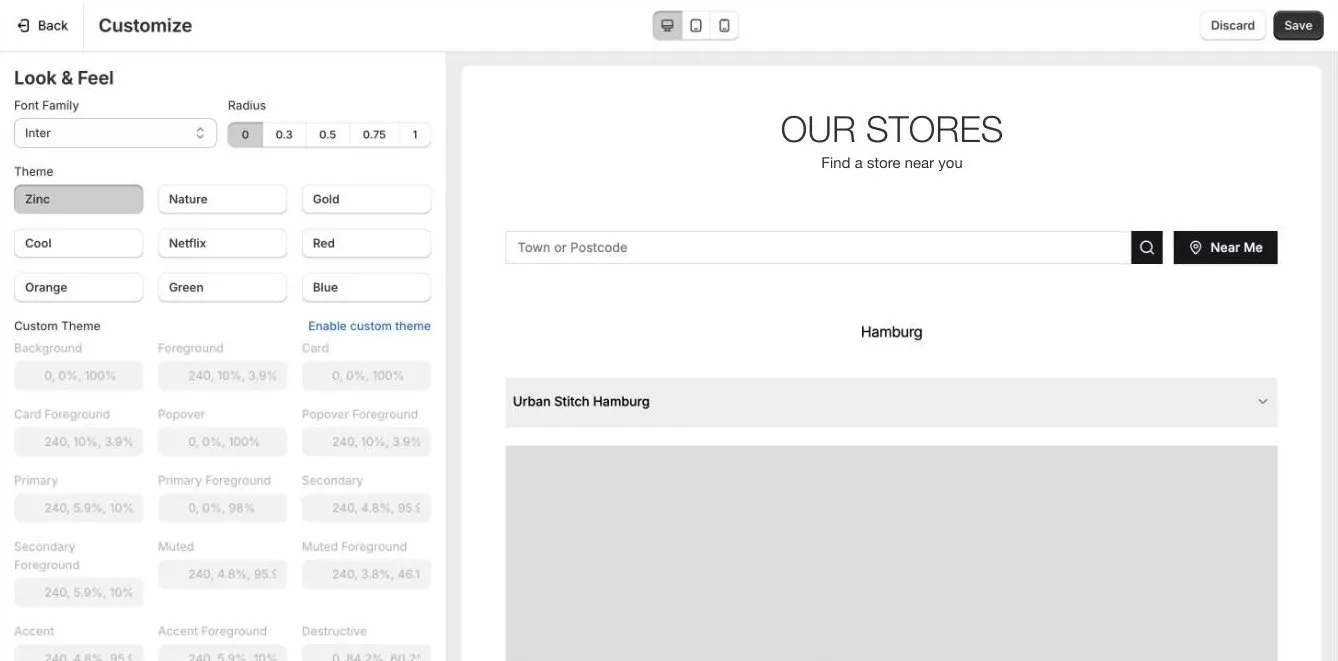
The left side has the settings. The right side is a live preview of your store locator. Use the buttons at the top to preview it on desktop, tablet, or mobile.
Change the look
- Font Family: the font for the store locator. Choose Inherit to use your theme’s font, or pick one, such as Inter, Poppins, Open Sans, Montserrat, or DM Serif Text.
- Radius: how rounded corners are on buttons, cards, and fields, from
0(square) to1(most rounded). - Theme: a ready-made colour set, such as Zinc, Nature, Gold, Blue, or Green. Click one to try it in the preview.
Use your own colours
- Next to Custom Theme, click Enable custom theme.
- Set each colour. The main ones are:
- Background and Foreground: the page background and the main text colour.
- Primary and Primary Foreground: buttons, such as Search, and the text on them.
- Card and Card Foreground: store cards and their text.
- Muted and Muted Foreground: softer backgrounds and secondary text.
- Border, Input, and Ring: borders, field outlines, and the highlight around a selected field.
- Destructive: error messages.
- Click a colour to pick it, or type an HSL value, such as
240, 5.9%, 10%.
Each Foreground colour is the text that sits on the colour above it. Keep enough contrast between them, so text stays easy to read.
Save or discard
- Click Save to apply your changes to your store locator.
- Click Discard to undo changes you haven’t saved.
- Click Back to return to Settings.
Tips
- Start from the preset closest to your brand, then enable a custom theme and adjust only the colours you need.
- Check the mobile preview. Most customers look for stores on their phones.
- For changes the customizer doesn’t cover, use Custom CSS on the Design tab. See Design and layouts.