Settings and design
Search settings
Choose how customers search your store locator, how far it looks, how results are sorted and grouped, which filters show, and the wording in the search bar.
The Search tab in Settings controls how customers find stores. Change a setting, then click Save in the bar at the top. Changes show on your store locator straight away.
Search method
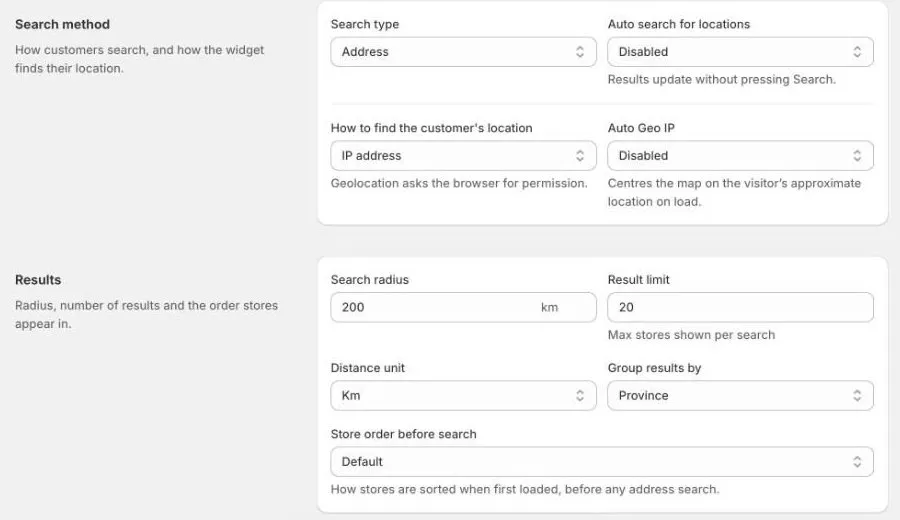
| Setting | What it does |
|---|---|
| Search type | Address lets customers search from any address, with suggestions as they type. Postcode / Suburb lets them search by postcode or suburb name. |
| Auto search for locations | When Enabled, results update as soon as the customer picks an address, without pressing Search. Not available with Postcode / Suburb. |
| How to find the customer’s location | What happens when a customer clicks the location button. Geolocation asks the browser for their exact location, with their permission. IP address uses their approximate location from their internet connection, without asking. None turns location lookup off. |
| Auto Geo IP | When Enabled, the map centres on the visitor’s approximate location as soon as the page loads, and the location button is hidden. |
Address suggestions need a Google Maps or Mapbox key. See Map settings.
Results
| Setting | What it does |
|---|---|
| Search radius | How far from the searched location to look for stores, for example 50 km. |
| Result limit | The most stores shown for one search. |
| Distance unit | Km or Miles. |
| Group results by | Show results under headings by Country, City, or Province, or None for one list. |
| Store order before search | How stores are sorted when the page first loads, before a search. Manual uses each store’s Sort order number. You can also sort by Store name A–Z or Z–A, or keep the Default. |
After a search, results are listed nearest first.
If customers often see no results, try a bigger Search radius.
Search area, filters, and labels
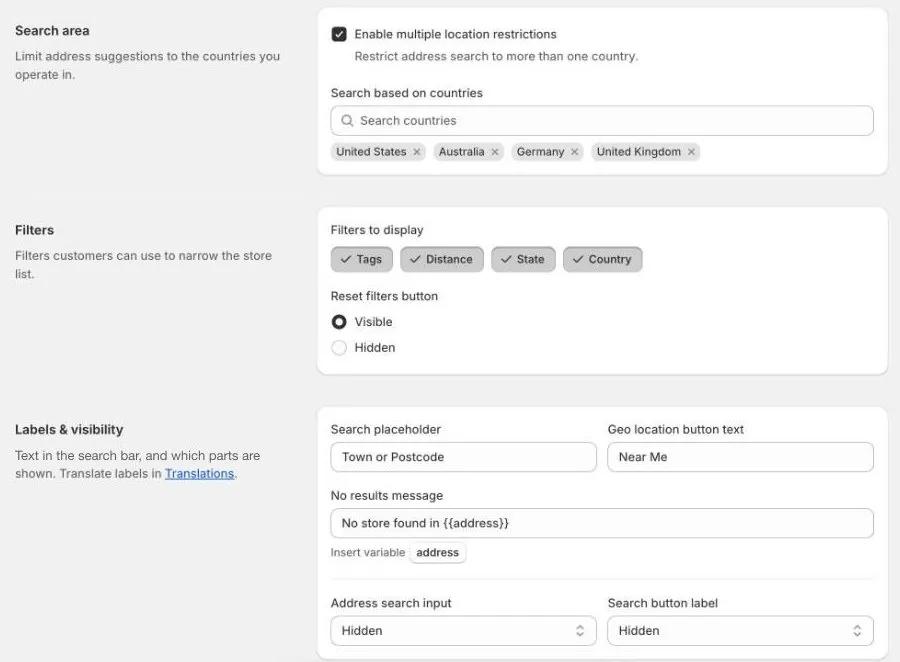
Search area
Limit address suggestions to the countries you trade in, so customers in Australia aren’t offered streets in Austria.
- Pick a country under Search based on country.
- To allow more than one country, tick Enable multiple location restrictions, then add each country.
Filters
- Filters to display: the filters customers can use to narrow the list: Tags, Distance, State, and Country. Click a filter to turn it on or off.
- Reset filters button: show or hide a button that clears all filters at once.
Tag filters use the tags on your stores. Keep tag names consistent so the filter list stays tidy. See Add and edit a store.
Labels and visibility
| Setting | What it does |
|---|---|
| Search placeholder | The hint text in the empty search box, for example Town or postcode. |
| Geo location button text | The text on the location button, for example Near me. |
| No results message | What customers see when no stores are found. Click address under the field to insert {{address}}, which is replaced with what they searched for, for example No stores found near {{address}}. |
| Address search input | Show or hide the search box. |
| Search button label | Show or hide the text on the search button. When hidden, the button shows an icon only. |
To show these labels in other languages, use Translations in the app menu. See Translations.