Locations
Find, filter, and bulk edit locations
Search and filter your locations, find stores that aren't on the map, and set many locations active, inactive, or update their hours at once.
locationssearchfilterbulk actionsnot on mapsort
The Locations page lists all your stores. Use it to find a store quickly, check which stores need attention, and change many stores at once.
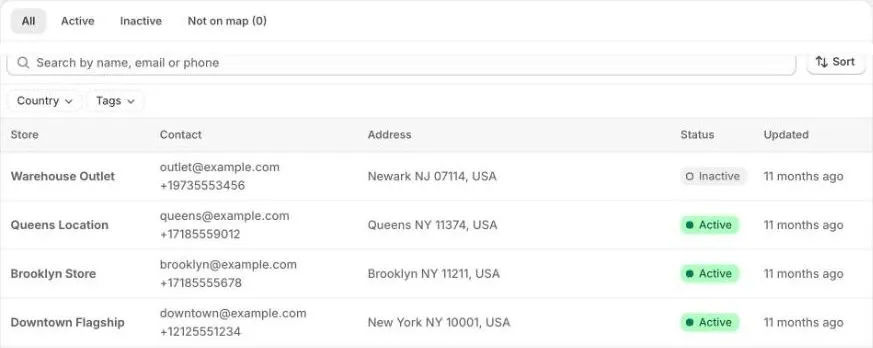
The list
Each row shows the store’s name, contact details, address, Active or Inactive status, and when it was last updated. Click a row to edit the location.
Tabs
- All: every location.
- Active: locations customers can see.
- Inactive: locations hidden from customers.
- Not on map: locations without a map position. Open each one and pick an address suggestion, or drag the pin. The number shows how many there are.
Search, filter, and sort
- Search: type part of a store’s name, email, or phone number.
- Country and Tags: show only stores that match. Tags come from the tags you add to locations.
- State/Province: appears after you choose a country.
- Sort: by Last updated (newest or oldest first), or by Name (A–Z or Z–A).
To clear a filter, click the × next to it.
Change one location from the list
Click ⋯ on a row:
- Edit: open the location.
- Set active or Set inactive: show or hide the store.
- Delete: remove the location from the app.
Change many locations at once
- Tick the locations you want to change. To select every location on the page, tick the box in the header.
- Choose an action:
- Set active: show the stores to customers.
- Set inactive: hide the stores from customers.
- Update hours: replace their weekly trading hours. Their special dates stay as they are. See Trading hours and special dates.
- Delete: remove the locations from the app.
Deleting locations can’t be undone. Customers no longer see the stores, and their hours and special dates are removed from the app. The locations in Shopify aren’t deleted.