Widget settings and design
Display types
Choose how the Find in Store widget appears on your product pages, and set its font, time format, address format, and when it searches.
The display type controls how the widget looks and opens on your product pages. You choose it in Settings › Widget appearance › Layout & fonts.
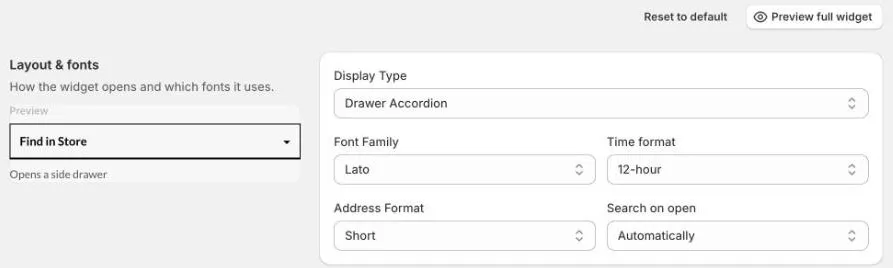
Choose a display type
- Go to Settings › Widget appearance.
- Under Layout & fonts, choose a Display Type. The preview on the left shows what it looks like.
- Click Save at the top right.
| Display type | What customers see |
|---|---|
| Anchor | A link on the product page that opens the store list. |
| Tab | Your tabs shown side by side on the product page. |
| Radio | Your tabs shown as radio options on the product page. |
| Accordion | Your tabs shown as rows that open and close on the product page. |
| Inline - Automatic Store Display | The nearest store, shown on the product page automatically. |
| Stacked | Your tabs shown one under another on the product page. |
| Drawer Accordion | A Find in Store button that opens a side panel, where customers search for stores and see their stock. |
Try a few and check them on your product page. Choose the one that fits your theme and how many stores you have.
Drawer Accordion
Customers click the button on the product page, and a panel slides in from the side. They choose a variant, search by address or use their location, and see the nearest stores with their stock.
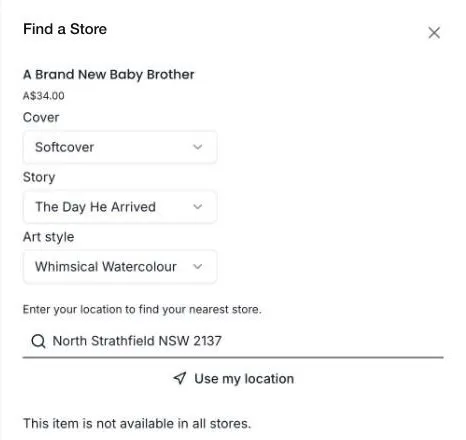
You can change the panel’s title and the select store button in the Drawer section. See Colours, fonts, and store cards.
Inline - Automatic Store Display
The widget shows the store nearest to the customer straight away, without them having to search. Two extra settings appear:
- Details on First Load: what’s shown for the nearest store when the page opens.
- Details to show on Store Click: what’s shown when the customer clicks a store.
For each, tick Trading Hours, Phone Number, Email, Address, or Map.
Other layout settings
| Setting | What it does |
|---|---|
| Font Family | The font for the widget, for example Lato or Open Sans. Choose Inherit to use your theme’s font. |
| Time format | Show hours as 12-hour (9:00 AM) or 24-hour (09:00). |
| Address Format | Short shows the street, suburb, and state. Full adds the postcode and country. |
| Search on open | Automatically shows stores as soon as the customer picks an address. When customer searches adds a search button, and waits for the customer to click it. |
Start again
Click Reset to default at the top of Widget appearance to put every setting on the tab back to how it started. Click Save to keep the reset, or Discard to undo it.