Shoppers, translations, and integrations
Shoppy Connect analytics
Send store searches, store views, calls, and direction requests from the Find in Store widget to Shoppy Connect, and see them in its reports.
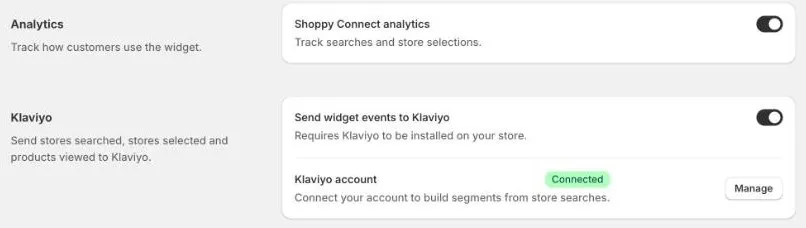
If you use Shoppy Connect, Find in Store can send what customers do in the widget to it. You then see which suburbs customers search from, and which stores they look at, call, and visit, in the Shoppy Connect reports.
Turn it on
- Go to Settings › Integrations.
- Under Analytics, turn on Shoppy Connect analytics.
- Click Save.
What’s recorded
| Customer action | Shoppy Connect report |
|---|---|
| Searches for an address, or uses their location | Searches by Suburb and Location Searches by Suburb |
| Chooses a store, or opens a store to see its details | Store views |
| Clicks a store’s phone number | Calls by Stores and Store Calls |
| Clicks Get Directions | Directions by Stores and Store Directions |
Each action includes the product and variant the customer was looking at, and the page it happened on. It also includes the type of device, the browser’s language, and the operating system.
No names, email addresses, or other customer details are sent.
See the reports
Open Shoppy Connect and go to Home or Reports. See Insights, analytics, and Shoppy AI for what each report shows.
Store reports need to know which Shoppy Connect store a location belongs to. This works for locations that come from Shoppy Connect. Calls, directions, and views for other locations can’t be matched to a store.
Good to know
- Nothing is recorded until you turn it on and save.
- Recording starts straight away. Reports only include activity from after you turned it on.
- Mention store search activity in your online store’s privacy policy, as you would for other analytics.