Widget settings and design
Store search settings
Set how far the widget looks for stores, how customers search, whether it finds their location automatically, and which variant's stock shows first.
The Store search tab in Settings controls how customers find a store near them. Change a setting, then click Save at the top right.
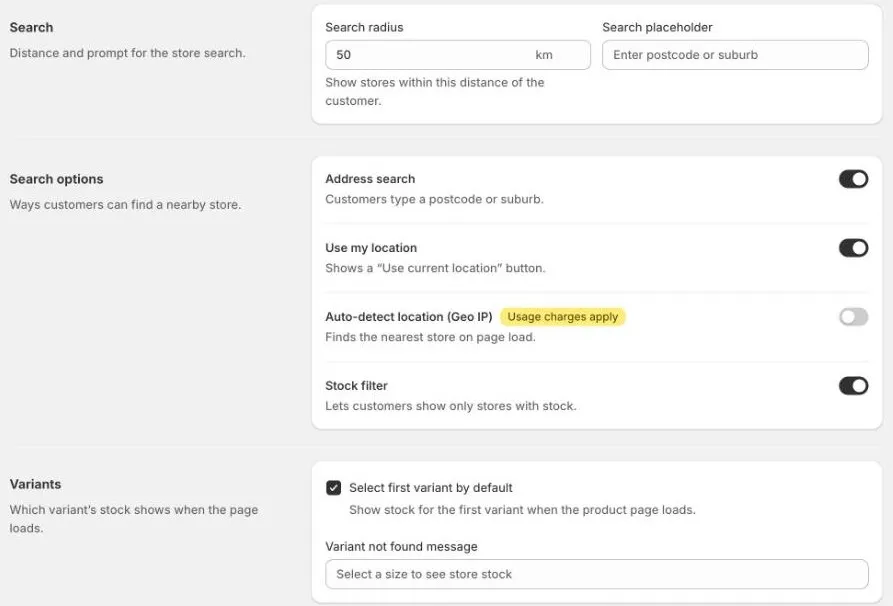
Search
| Setting | What it does |
|---|---|
| Search radius | How far from the customer to look for stores, in kilometres. Out of the box, it’s 50 km. |
| Search placeholder | The hint text in the empty search box, for example Enter postcode or suburb. |
If customers often see no stores, try a bigger Search radius.
Search options
| Setting | What it does |
|---|---|
| Address search | Customers type a postcode, suburb, or address. Needs a Google Maps API key. |
| Use my location | Shows a Use my location button. The customer’s browser asks them for permission first. |
| Auto-detect location (Geo IP) | Finds the customer’s approximate location from their internet connection when the page loads, and shows the nearest stores without them searching. |
| Stock filter | Lets customers show only stores that have the product in stock. |
Geo IP and usage charges
Auto-detect location (Geo IP) is off until you turn it on. Each lookup counts towards your plan’s Geo IP allowance:
- Each plan includes 100,000 lookups every 30 days.
- After that, it’s US$11 for each extra 100,000 lookups, added to your Shopify bill.
- Lookups during your free trial aren’t charged.
A lookup only happens when a customer hasn’t chosen a store yet. Once they choose one, the widget remembers it.
Go to Billing in the app menu to see your plan. See Plans and billing.
Variants
For products with options, such as size or colour:
- Select first variant by default: shows stock for the first variant when the product page opens. Untick it to wait until the customer chooses a variant.
- Variant not found message: shown when the chosen combination of options doesn’t exist, for example
Select a size to see store stock.
Search area and language
The country address suggestions are focused on, and their language, are set in Settings › General › Map. See Get a Google Maps API key.