Shoppers, translations, and integrations
What shoppers see
How customers use the Find in Store widget on your product pages, from searching for a store to choosing one, and the messages they might see.
This guide walks through the widget from your customer’s side. What they see depends on your display type and settings, but the steps are the same.
1. On the product page
Customers see the widget under your Add to cart button, or wherever you placed the block.
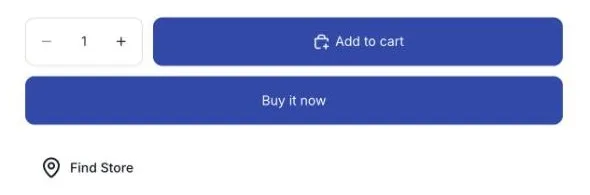
- If they haven’t chosen a store yet, they see a Find Store button or link.
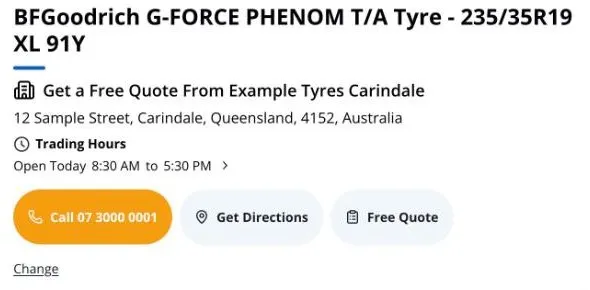
- If they’ve chosen a store before, they see that store and whether it has the product: In stock or Out of stock. They can also see the store details you’ve turned on, such as the address, trading hours, phone number, and Get Directions.
2. Search for a store
Customers click Find Store, or Change Store to pick a different one. A panel opens, where they find stores near them in one of these ways:
- Type an address: they start typing a postcode or suburb and choose from the suggestions.
- Use my location: their browser asks if it can share their location, then the widget searches near them.
- Automatically: if you’ve turned on Auto-detect location (Geo IP), the nearest stores show without them searching.
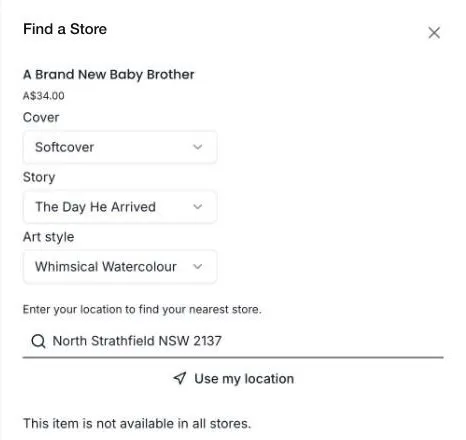
You choose which of these customers can use in Store search settings.
3. Look through the stores
The widget lists the stores within your Search radius, nearest first.
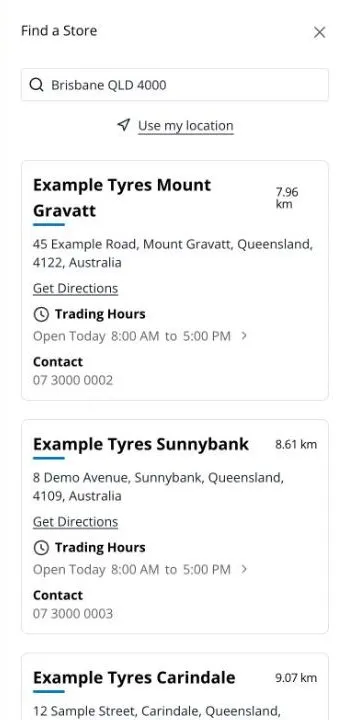
For each store, customers see:
- The store name and how far away it is.
- A stock banner, such as In stock or Out of stock, when you use the Shoppy FS - Widget block. See How stock works.
- A low stock message, if you’ve set one. See Stock levels and messages.
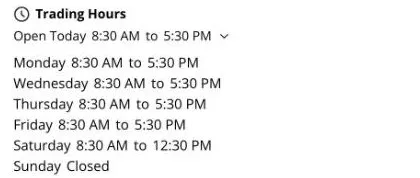
- The store’s address, trading hours, and phone number, with buttons to call the store or get directions in Google Maps.
Customers click the > next to today’s hours to see the whole week, and any special trading hours, such as public holidays.
If you’ve turned on Stock filter, customers can tick In Stock Only to hide stores that don’t have the product.
When customers choose a different size or colour, the stock updates for that variant.
4. Choose a store
Customers click a store to choose it. With some display types, they then click Select Store. The panel closes and the page shows the store they chose.
- The chosen store is remembered in their browser, so it shows on every product page and in the Header Inline and Footer blocks.
- It stays until they choose another store, clear their browser data, or use another device.
With the Drawer Accordion display type, customers open a store to see its details, but don’t choose a store. The panel shows the stock for each store each time it opens.
Choosing a store doesn’t reserve stock. It only shows customers where the product is. Customers still choose delivery or pickup at checkout, as usual.
Messages customers might see
| Message | Why it shows |
|---|---|
| No stores found. Please try again with a different address or contact us for assistance. | No stores are within your Search radius of the address they searched. |
| This item is not available in all stores. | None of the nearby stores has the product. You can change this wording in Settings › Stock. |
| Please select a variant first. | The product has options, such as size, and the customer hasn’t chosen one, or the combination doesn’t exist. You can change this wording in Settings › Store search. |
| Searching for addresses is unavailable. Please contact the site owner. #GAPI | Address search isn’t working. Check your Google Maps API key. |
| Unable to retrieve your location, please search an address instead. | The customer said no when their browser asked to share their location, or it couldn’t be found. |
You can change the wording of all these messages in Translate. See Translations.
Try it yourself
To see the widget the way customers do:
- In your Shopify admin, go to Online Store › Themes and click Customize.
- Open a product page template, then click View to preview it in a new tab.
- Search for an address near one of your stores, and choose a store.
Use a product that’s in stock at one of your stores, so you can see both In stock and Out of stock stores.