Widget settings and design
Other theme blocks
Add the Header Inline, Inline Nearest Store, Footer Block, and Search Stores blocks to your theme, and what each one shows customers.
As well as the main Shoppy FS - Widget block for product pages, Find in Store has four more blocks you can add to your theme. They use the same locations and the store each customer has chosen.
Add a block
- In your Shopify admin, go to Online Store › Themes and click Customize.
- Open the page you want the block on.
- Click Add block or Add section where you want it, then click the Apps tab.
- Choose the block, then change its settings on the right.
- Click Save.
| Block | Where you can add it | What it’s for |
|---|---|---|
| Shoppy FS - Widget | Product pages | Stock at each store. See Add the widget to your product page. |
| Shoppy FS - Header Inline | Any page | The customer’s chosen store, at the top of the page. |
| Inline Nearest Store | Any page | The store nearest to the customer, with call and quote buttons. |
| Shoppy FS - Footer Block | Your theme’s footer | A short find-a-store area in the footer. |
| Shoppy FS - Search Stores | Any page | A large store search, for example on a Find a store page. |
Shoppy FS - Header Inline
Shows the store the customer has chosen at the top of every page, so they always know which store they’re shopping. Add it to your theme’s Header section.

- Change opens the store list, so customers can pick a different store.
- The Call button rings the store.
- If the customer hasn’t chosen a store yet, it shows a Find Store button instead.
| Setting | What it does |
|---|---|
| Show Details | Show the store’s details, such as its opening hours and phone, not just its name. On by default. |
| Column Count | Lay the details out in 1 Column or 2 Columns. |
Inline Nearest Store
Shows the customer’s nearest store, or the one they’ve chosen, with buttons to call the store, get directions, or ask for a quote. You can add it to any page, including your product pages.
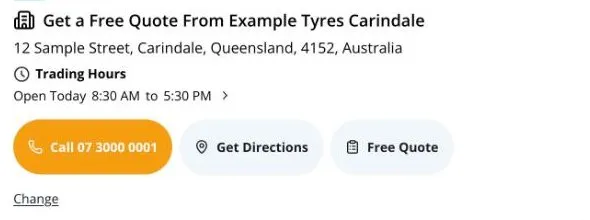
Customers click Change to search for another store, and the > next to today’s hours to see the whole week.
Inline Nearest Store settings
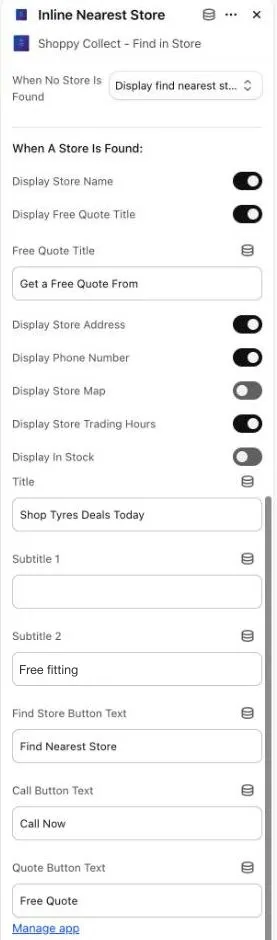
| Setting | What it does |
|---|---|
| When No Store Is Found | Display nothing, or Display find nearest store button so customers can search. |
| Display Store Name | Show the store’s name. |
| Display Free Quote Title | Show the Free Quote Title before the store’s name, for example Get a Free Quote From Example Tyres Carindale. |
| Display Store Address | Show the store’s address. |
| Display Phone Number | Show the Call button with the store’s phone number. |
| Display Store Trading Hours | Show today’s hours, and the week’s hours when customers open them. |
| Title | A heading above the Find Nearest Store button, before a store is chosen. It doesn’t show on product pages. |
| Subtitle 1 | A short line under the store’s details, for example Free fitting with every set of tyres. |
| Find Store Button Text | For example Find Nearest Store. |
| Call Button Text | For example Call Now. |
| Quote Button Text | For example Free Quote. Opens the quote form. |
Some settings don’t do anything yet. Display Store Map, Display In Stock, and Subtitle 2 are in the list, but at the moment the block doesn’t use them.
Change the default text. This block starts with sample text for a tyre shop, such as Shop Tyres Deals Today and Largest Range of Tyres. Replace the Title and Subtitle 1 with your own wording, or clear them, before you save.
The block also shows the store’s tags, if it has any.
Quote requests
Free Quote opens a short form, with the store’s name at the top.
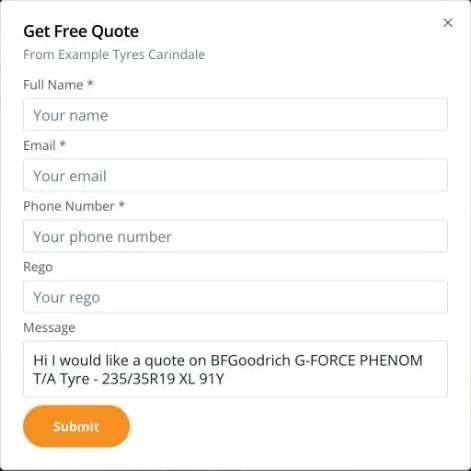
Customers fill in their Full Name, Email, and Phone Number, then click Submit. On a product page, the Message already names the product.
After they submit, customers see Thank you for your submission!. The store and the customer both get an email about the request.
The form is protected by Google reCAPTCHA, to stop spam. If a customer sees Recaptcha error, please try again., an ad blocker or privacy setting may be blocking reCAPTCHA. Ask them to turn it off for your store, or to call the store instead.
Quote requests are sent to Shoppy Connect, so you need a Shoppy Connect account to receive them. See Forms and submissions. If you don’t use Shoppy Connect, untick Display Free Quote Title and use a different block on your product pages.
Shoppy FS - Footer Block
A small area in your footer that shows the customer’s chosen store, with Call and Get directions buttons. If they haven’t chosen a store, it shows a button to find one.
| Setting | What it does |
|---|---|
| Footer Block Title | The heading, for example Find a Store. |
| Action Text | Extra text shown next to the buttons, for example Get free quote. It doesn’t link anywhere yet, so leave it empty if you don’t need it. |
Shoppy FS - Search Stores
A large search area, with a background image, where customers search by address or use their location to find their nearest store.
| Setting | What it does |
|---|---|
| Background Image | The image behind the search. |
| Header Text | The heading, for example Find Nearby Store. |
Address search needs a Google Maps API key.
Good to know
- The store a customer chooses is remembered in their browser, so every block shows the same store.
- You can use Inline Nearest Store on your product pages instead of Shoppy FS - Widget. If you do, Home shows the widget as Not added. That’s expected. See If Widget status says Not added.
- The blocks’ text can be translated in Translate in the app menu. See Translations.