Shoppers, translations, and integrations
Translations
Change the widget's wording, and translate its buttons, labels, and messages into other languages with the Translate page.
Use Translate in the app menu to change the wording of the widget’s buttons, labels, and messages, in English and in other languages.
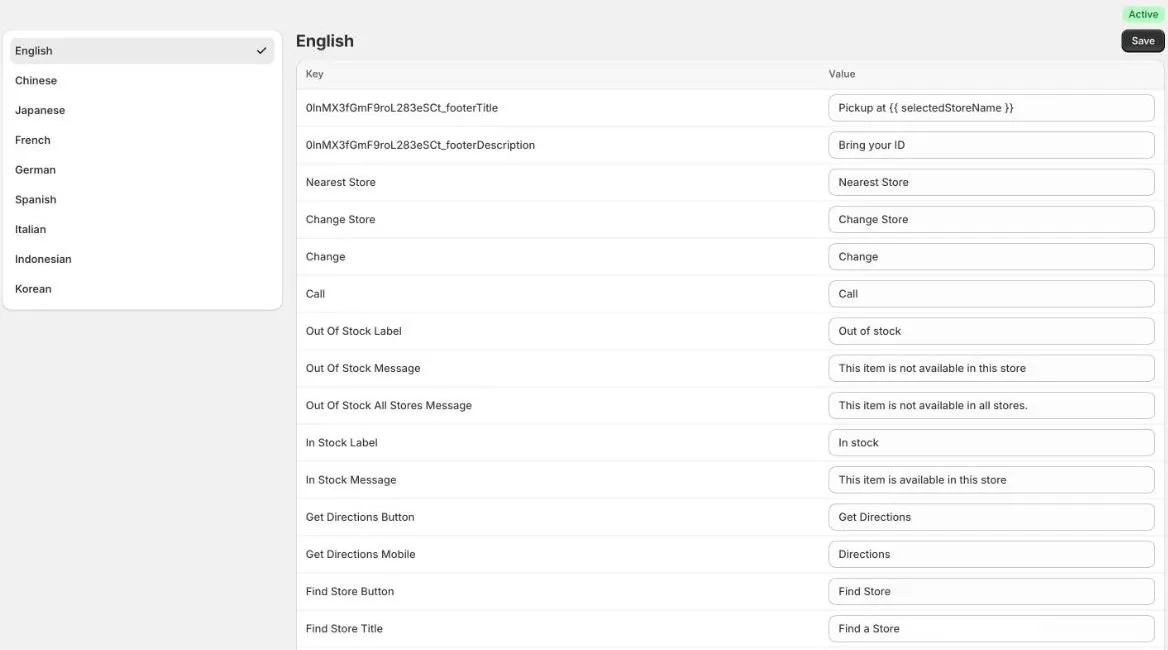
Languages
You can enter wording for:
- English
- Chinese
- Japanese
- French
- German
- Spanish
- Italian
- Indonesian
- Korean
German and Korean don’t show yet. You can save German and Korean wording, but at the moment the widget doesn’t use it. Customers using those languages see English.
Change the wording
- Click Translate in the app menu.
- Click a language on the left.
- Change the text in the Value column. Each Key tells you which piece of text it is, for example Change Store or Out Of Stock Label.
- Click Save.
Each language has its own Save button. Save each language before you move to the next one.
Some text has a word in double curly brackets, such as {{storesCount}}. Keep these exactly as they are. The widget swaps them for real values, such as the number of stores found.
Tab footers
Your tab footers are at the top of the list. Their key is a code followed by _footerTitle or _footerDescription, for example 0lnMX3fGmF9roL283eSCt_footerTitle.
What you can change
| Group | Examples |
|---|---|
| Buttons and links | Find Store Button, Change Store, Select Store Button, Get Directions Button, Use My Location Button, Call |
| Stock | In Stock Label, Out Of Stock Label, Out Of Stock All Stores Message, In Stock Filter Label |
| Search | Search Address Placeholder, Search Address Guide, No Store Found Message, Results Summary |
| Trading hours | Trading Hours Title, Open Today Label, Closed Today Label, Special Trading Hours Title |
| Other | Distance Metric Label, Variant Not Found Message, your tab footers |
Which language customers see
The widget picks the language for each customer:
- If your store’s web address includes a language, such as
/fr/for French, the widget uses that language. - If not, it uses the language of the customer’s browser.
- If the widget doesn’t support that language, it uses English.
The widget comes with its own wording for each language, so you only need to change the wording you want to be different.
To sell in more than one language, add your languages in Shopify under Settings › Languages.
Wording in Settings and in Translate
Some text can be set in two places: Settings › Stock has the stock messages, and Translate has them too.
Once you’ve saved wording in Translate, the widget mostly uses the Translate wording. To keep things simple, change stock wording in both places so they match.
If you can’t use Translate
If you see Translation Features Require Plan Upgrade, translations aren’t turned on for your store. Click View Billing options to see your plan, or contact us and we’ll help.