Locations
Locations managed by Shoppy Connect
Why the Locations page is read-only when your stores are managed in Shoppy Connect, and where to change them instead.
If you use Shoppy Connect and have connected its Shoppy Collect Find in Store channel, Shoppy Connect manages your locations. Your stores’ details, trading hours, and special dates come from Shoppy Connect, so you keep them in one place.
What you’ll see
The Locations page shows Locations are managed in Shoppy Connect at the top.
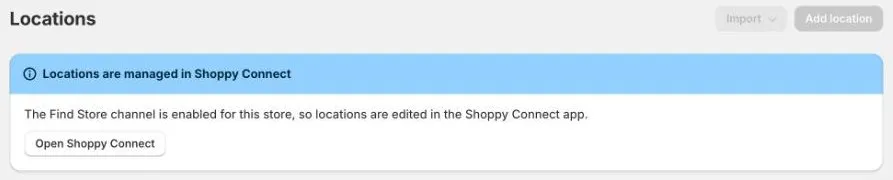
While Shoppy Connect manages your locations:
- Import and Add location are turned off.
- You can’t open, select, or change locations in the list.
- You can’t change the Default trading hours.
- You can still search, filter, and sort the list to check your stores.
Change a location
- Click Open Shoppy Connect in the banner.
- Change the store in Shoppy Connect, for example its address, trading hours, or special dates.
- Send the change to Find in Store. Changes are sent in the background, or you can send them straight away with Find Store › Update Stores on the Stores list.
To add a new store to Find in Store, add it in Shoppy Connect, then use Find Store › Create Stores.
See Store Locator, Find in Store, and Wildjar in the Shoppy Connect guides.
Stock still comes from Shopify
Shoppy Connect manages your stores’ details. The stock customers see still comes from each store’s Shopify location. See Getting started with Shoppy Find in Store.
Manage locations in Find in Store instead
To edit locations in Find in Store again, disconnect the Shoppy Collect Find in Store channel in Shoppy Connect. See Disconnect a channel.
After that, Shoppy Connect stops updating your locations, and you manage them on the Locations page.